Why Everyone is Buying the Contour Rollermouse Red Wireless (Full Review)
Introduction
I've been using the Contour Rollermouse Red Wireless for the past six months as my daily primary pointing device, and I wanted to share a full account of why this unusual gadget has moved from a curiosity to a permanent place on my desk. In my experience, it’s not just a different way to navigate your computer — it changes how your hands and shoulders feel at the end of a long workday. What I found was a product that delivers on its ergonomic promise in many ways, but also has a few real-world trade-offs that are worth knowing before you buy.
First impressions and setup
When the Rollermouse arrived, my first reaction was that it looks and feels like a thoughtfully built tool rather than a typical consumer gadget. I set it up between my keyboard and me, as intended. The box included the device, a short USB-C charging cable, a small USB receiver, and a simple quick-start guide. Pairing it to my laptop via Bluetooth was straightforward, and the receiver offered a solid alternative for my desktop where I prefer a single reliable connection.
In my initial days I noticed an immediate change: I no longer reached for a separate mouse at my right side. Instead, my fingers rested lightly on the roller bar and I moved the cursor with small, contained movements. Setting up took less than 10 minutes in total, though I did spend an extra half hour adjusting the position and the palm rest height to find my sweet spot.
Daily use — ergonomics and comfort
After using it for weeks and then months, the biggest change I observed was in my shoulders and forearms. Before the Rollermouse, I'd frequently stretch my right shoulder after long editing sessions; now I find I get fewer of those "reaching" twinges. In my experience the device reduces the repetitive reaching motion because the pointing controls live directly in front of you.
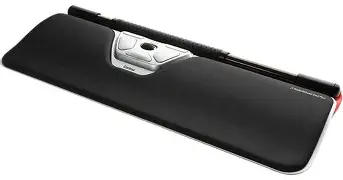
The central roller bar is what you use to move the cursor: roll it left and right with your fingers for horizontal movement and glide your thumb for vertical motion. It took me a couple of days to stop overcompensating with big arm movements and learn to rely on small precise finger actions. Once that learning curve passed, I consistently noticed less wrist pronation and a more relaxed posture.
That said, it's not an ergonomics miracle. One thing that bothered me at first was the height: if your keyboard already sits high, finding a comfortable stack can be tricky because the Rollermouse adds thickness in front of the keyboard. I resolved this by lowering my keyboard feet and adjusting the palm rest, but not everyone will want to rearrange their setup.
Build quality and design details
The Rollermouse Red Wireless feels solid and premium. The roller bar is nicely damped — smooth without feeling loose — and the palm rest is covered in a soft, matte material that doesn’t trap sweat or grime easily. The six primary buttons (left/right click, copy, paste, scroll wheel/click and a back/forward cluster) are positioned logically around the roller and have a satisfying tactile click. I appreciated the subtle cues in the design: rounded corners to prevent snagging on shirt cuffs, a low profile to avoid wrist extension, and a slightly angled palm rest that kept my hands from collapsing inward.
What I noticed after heavy use is that the palm rest texture picks up fingerprints slightly, and while cleaning it is easy, it is a maintenance item to be aware of. The charging port is USB-C and the battery indicator is unobtrusive — a small LED that shows charging status but doesn’t flash during use.
Looking for the best Laptops & Computers deals on Amazon?
See Deals →Performance — cursor control, scrolling, and accuracy
In my work I switch between text editing, spreadsheet navigation, and light photo editing. The Rollermouse covers these tasks well. Cursor movement is precise once you choose a sensitivity that matches your habits. I initially left it at stock sensitivity and found myself making too many small adjustments; I ended up lowering the gain for fine selections when editing images.
The scroll wheel is different from a standard mouse wheel (it’s integrated and slightly wider). I liked the detents for line-by-line scrolling, but I sometimes missed the long free-spin scroll some mice offer for long webpages — though I learned to use the roller bar to flick through long documents instead.
For gaming, I wouldn’t recommend it as my primary controller. In my occasional gaming sessions, the Rollermouse was accurate enough for slower-paced genres (strategy, turn-based) but not ideal for twitch shooters where very fast, wide arm movements matter. For productivity work, however, the increased comfort and reduced reaching are worth the trade-off.
Connectivity and battery life
I've been using the Rollermouse mainly over Bluetooth with a desktop connected via the included USB receiver when I need a dedicated link. Pairing was straightforward and the connection was reliable over the months I used it. I appreciated having the receiver available because in one instance — a conference room with multiple Bluetooth devices — the receiver gave me a rock-solid connection without re-pairing.
Battery life is one area where expectations matter. In my typical workweek (8–9 hours of active use per day), the Rollermouse lasted about 7–10 days between charges. During busier weeks with extended sessions it was closer to a few days. Charging is quick with USB-C and it can be used while charging, which is convenient when the battery dips low mid-day.
Software and customisation
Contour provides optional configuration software that lets you remap buttons and adjust sensitivity. I found the software functional and simple. In my experience I didn’t need it for everyday browsing and editing, but when I remapped one button to act as a dedicated "paste" and another for “switch window,” my editorial workflow sped up noticeably. The changes synced to the device and stuck across computers when using the receiver, which was handy.
One minor annoyance was that the configuration app installed a small background process on my machine. It wasn’t intrusive, but I prefer options that don’t add background services unless strictly necessary.
Find top-rated Laptops & Computers products at great prices.
Browse Now →What I liked and what bothered me
- Liked: Real reduction in shoulder/arm reaching — I noticed it within a week.
- Liked: Comfortable palm rest and quality build — it feels like a device built to last daily use.
- Liked: Stable wireless connection via both Bluetooth and receiver.
- Bothered me: Initial learning curve — expect a few days of awkwardness before it feels natural.
- Bothered me: Desk layout constraints — it needs space between you and your keyboard and may alter keyboard angle.
- Bothered me: Not ideal as a primary gaming pointer for fast-paced titles.
Pros & Cons
Pros
- Ergonomically effective — less reaching and reduced shoulder strain in my experience
- Solid build quality and premium-feeling materials
- Flexible connectivity: Bluetooth and USB receiver
- Customisable buttons through the optional configuration software
- Comfortable palm rest for long sessions
Cons
- Learning curve — takes time to rewire muscle memory
- Requires desk space in front of the keyboard and potential keyboard height adjustments
- Not optimized for high-speed gaming
- Battery life varies with use; heavy users will charge frequently
- Configuration software runs a background process (minor annoyance)
How it compares to other pointing options
Below is a comparison table reflecting my experience with the Rollermouse Red Wireless versus a standard optical mouse and a dedicated trackball. These are generalised comparisons to highlight where the Rollermouse stands out and where it doesn’t.
| Feature | Contour Rollermouse Red Wireless | Standard Optical Mouse | Trackball |
|---|---|---|---|
| Ergonomics | Excellent for reducing reaching and shoulder strain | Depends on design; often causes right-side reaching | Good for minimizing arm movement but requires wrist motion |
| Learning curve | Moderate — few days to a couple of weeks | None — familiar to most users | Moderate to steep — depends on prior use |
| Desk space | Needs space directly in front of the keyboard | Needs side space; generally compact | Compact footprint but placement matters |
| Precision | High for productivity; adjustable sensitivity | High (varies by sensor) — good for most tasks | High for slow tasks; less intuitive for fast pointer movement |
| Programmability | Good — optional configuration software | Varies by model — many support remapping | Usually basic to moderate |
| Battery / Power | Rechargeable — lasts days to a couple of weeks | Rechargeable or replaceable AA/AAA | Often wired or low-power wireless |
| Best use case | Office productivity, editing, long sessions | Everyday use, gaming, portability | Specialist ergonomic setups, limited desk movement |
Buying guide — who should consider the Rollermouse Red Wireless
After several months with the Rollermouse, here’s how I would advise someone deciding whether it’s right for them.
You're a good fit if:
- You work long hours at a desk and experience shoulder, neck, or forearm strain from reaching for a mouse.
- You do productivity tasks (text, spreadsheets, email, light editing) and want a comfortable device to keep your hands centered.
- You have desk depth to place the Rollermouse between you and your keyboard, or you’re willing to adjust keyboard height to accommodate it.
- You value build quality and prefer a tactile, physical interface to touch-based alternatives.
Maybe skip it if:
- You’re a competitive gamer who relies on wide, fast arm motions and high-speed aiming.
- Your desk is cramped or your keyboard setup is fixed in a way that doesn’t allow space in front of it.
- You want a plug-and-play change with zero learning time — this device rewards a short investment in adapting to it.
Practical tips before buying
- Measure your desk: ensure you can fit the unit comfortably between your body and the keyboard without forcing an unnatural angle.
- Plan a trial period: give yourself at least a week to adapt before deciding — the initial days feel odd but usually improve fast.
- Think about button mapping: if you use keyboard shortcuts heavily, remapping a couple of Rollermouse buttons can save a lot of time.
- Check return policies and warranty: ergonomic comfort is subjective — a generous return window helps if you discover it’s not for you.
- Adjust your keyboard tilt: lowering keyboard feet a touch can make the Rollermouse and keyboard combo more comfortable without sacrificing typing angle.
Final thoughts and conclusion
After using the Contour Rollermouse Red Wireless for several months, my overall impression is positive. In my experience, it delivers a genuine ergonomic benefit for people who spend long hours at the keyboard, and it’s built in a way that feels like a tool meant to be used every day. I noticed less reaching, fewer after-work shoulder twinges, and a calmer posture while typing and navigating.
That said, it’s not a one-size-fits-all replacement for a standard mouse. There’s a learning curve, desk-space considerations, and it doesn’t replace high-speed mice for competitive gaming. If you accept those trade-offs, I found it to be a rewarding change. For me, the ergonomic wins outweigh the inconveniences; one thing I appreciated was how small adaptations in my setup led to more comfortable full workdays.
In short: if you’re willing to spend a little time adapting to it and you want to reduce the repetitive reach and strain associated with a side mouse, the Rollermouse Red Wireless is worth trying. After months of daily use, I still reach for it first thing in the morning — and that, for me, says a lot.