Pixma Mg3620 Review: Real User Experience After 3 Months
Introduction
I've been using the Canon Pixma MG3620 as my household all-in-one printer for about three months now. I bought it to replace an aging office printer and to have something that could handle occasional photo printing, school handouts, and basic scanning for receipts and documents. In this review I’ll walk you through my real-world experience — the parts I liked, the things that frustrated me, and what I learned about running costs and reliability over a medium period of use.
Setup and First Impressions
Right out of the box the MG3620 felt light and compact — small enough to sit comfortably on a corner of my desk. The physical footprint and the low weight made placement easy, which I appreciated since my workspace is tight. The included manual was short and to the point; most of the setup process happens through the Canon PRINT app or the printer’s WPS Wi‑Fi setup.
One notable moment during setup: the wireless configuration requires a 2.4 GHz network. My home router was broadcasting both 2.4 GHz and 5 GHz and the Canon setup failed until I temporarily disabled the 5 GHz band. That was a mild annoyance but only took a few minutes to resolve. After that, connecting my phone via AirPrint and using the Canon app was straightforward.
Daily Use: Printing, Scanning, and Copying
I've used this printer for a mix of tasks: black-and-white homework sheets, colorful school handouts, a handful of photo prints, and routine scanning of receipts and forms. For everyday printing the MG3620 performed reliably. Text prints are crisp and generally quick enough for home use. The scanner produced usable scans for documents — not museum-quality photos, but perfectly fine for digital records and occasional archiving.
One thing I found was that the first page out time can be a little sluggish if the printer has been idle for several hours. That small delay is noticeable when you print one page and expect instant output. For multi-page print jobs it smooths out and the overall throughput is acceptable for non-business use.
Print Quality — Text and Graphics
When printing text documents, I was pleased with how sharp and readable the output was. Fonts render cleanly and even small print (like legal disclaimers and fine table text) comes out with minimal feathering. For school handouts and recipes, the MG3620 is more than adequate.
Graphics and color pages looked vibrant on standard office paper, but I did notice some limitations when printing photos. Photos printed on dedicated photo paper showed good color saturation and nice skin tones, yet I observed slight banding in areas with smooth gradients (like skies) and occasional oversaturation in very bright reds. If you print photos occasionally for framing or gifts, you can get good results, but if you’re a serious photo enthusiast you’ll probably notice that a higher‑end photo inkjet produces smoother gradients and more accurate color reproduction.
Photo Printing: Expectations vs Reality
I printed a small batch of family snapshots at 4x6 and 5x7. On glossy photo paper the results were pleasing for casual display and albums. Colors were punchy and the borderless printing option worked nicely. What surprised me was how quickly the color cartridges seemed to drop in estimated capacity after a few photo-heavy jobs — the printer doesn't hide cartridge consumption.
Over three months, with a mix of text and some photo printing, I burned through one color cartridge faster than I expected. If you plan to print photos regularly, be prepared for frequent cartridge changes or consider XL cartridges if available. Also, I noticed a slight fading after a couple of weeks for photos displayed in indirect sunlight — nothing dramatic, but worth noting if you care about long-term archival quality.
Scanning and Copying
The flatbed scanner has been handy for receipts, odd pages from books, and occasional high-contrast images. Scans are clean and usually free from artifacts when the glass is clean. The provided software does a decent job of basic cleanup and OCR for simple documents, but it’s not as feature-rich as some standalone scanner packages.
Find top-rated Electronics products at great prices.
Browse Now →Copying is straightforward: put the document on the glass, choose a number of copies and size scaling, and the printer does the rest. For quick copies the quality is acceptable, though copies of photos don't match original photo prints in tone or sharpness.
Speed and Reliability
Speed is a relative thing. In my experience the MG3620 is perfectly fine for households: printing homework packets, boarding passes, and recipes felt fast enough. It isn’t a fast office machine — large, complex documents with graphics take noticeable time. I also experienced a few minor hiccups: once, after a firmware update, the printer needed a power cycle to complete configuration; another time the Canon app lost connection and I had to reselect the printer. These were small inconveniences rather than deal-breakers.
Over the three months the printer jammed only once, and that was when I tried printing on heavier cardstock. Regular copy and printing on standard paper ran without issue.
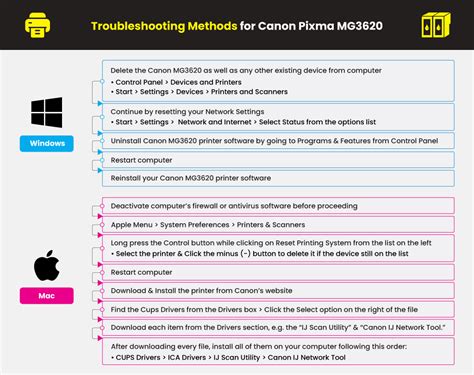
Ink and Running Costs
I paid close attention to ink usage because that’s where budget printers usually surprise you. The MG3620 uses individual black and color cartridges (or combined color depending on which cartridges you choose). In my use pattern — mostly text with intermittent color pages and occasional photos — the color cartridge life was the weakest link. Color printing, especially photos, consumed ink much faster than simple color graphics.
Replacing cartridges is easy; they snap in and out with minimal fuss. However, cartridge yield and cost per page are higher than a monochrome laser for text-heavy workflows. If you primarily print documents, a laser printer might save money in the long run. If you value color capability for occasional photos and colorful school projects, the inkjet trade-off can be worth it.
Connectivity and Software
Wireless printing from phones and tablets worked well most of the time. I used AirPrint from iOS devices and the Canon PRINT app on Android. The Canon app provides options for scans and maintenance tasks; it's serviceable but can feel a little clunky compared to more polished apps I’ve used from other manufacturers.
There’s no Ethernet port and no automatic duplex unit, which matters depending on your needs. Also, as I mentioned earlier, the wireless setup expects a 2.4 GHz network and can be finicky around dual-band routers during initial setup. Once connected, though, the MG3620 remained accessible from my devices without frequent drops.
Design, Build, and Paper Handling
The MG3620 is compact and lightweight, which is great for small spaces. The paper tray is hidden under a lift-up cover and holds a modest amount of paper. I wouldn't call it a heavy-duty tray — if you print high volumes you’ll need to refill more often than with larger printers.
The plastic build is typical of budget home printers: it feels adequate but not rugged. The output tray holds pages securely enough but can be awkward with larger stacks. Borderless printing is supported and worked nicely for photo sizes; however, for heavy cardstock or unusual media you may need to feed sheets manually, and that’s where you might find limitations.
What I Appreciated
- I liked the compact size and easy placement on my desk — it fit where my old printer could not.
- Text print quality for documents is very solid and reliable for schoolwork and recipes.
- Wireless mobile printing (AirPrint and Canon app) generally worked well once set up.
- Borderless photo printing on glossy paper produced pleasing results for casual photos.
What Frustrated Me
- Ink consumption for color/photo printing was higher than I expected, leading to more frequent cartridge swaps.
- Setup required switching to a 2.4 GHz network — slightly inconvenient for those with strict router setups.
- No automatic duplexing — manual double-sided printing is a missing convenience.
- The Canon app occasionally lost connection and felt less polished than some competitors' apps.
Pros & Cons
Pros
- Compact design: small footprint works well in tight spaces.
- Good text quality: sharp, readable documents for everyday use.
- Decent photo prints: quality is suitable for casual photo printing and albums.
- Easy cartridge replacement: straightforward hardware maintenance.
Cons
- Running costs: color and photo printing consume ink quickly.
- No duplex: lacks automatic double-sided printing.
- Wireless setup quirks: requires 2.4 GHz and can be finicky during initial setup.
- Software hiccups: occasional connectivity and app reliability issues.
Comparison Table
| Feature | Pixma MG3620 | Budget Monochrome Laser | Mid‑range Photo Inkjet |
|---|---|---|---|
| Text Quality | Good for home/school | Excellent (crisp, lowest cost per page) | Good (color-optimized) |
| Photo Quality | Good for casual prints | Poor (not designed for photos) | Excellent (smooth gradients, accurate color) |
| Running Costs | Moderate to high with color use | Low for black-and-white | High but better yields with XL cartridges |
| Speed | Moderate (home use) | Fast (text-heavy jobs) | Moderate (slower for high-quality photos) |
| Duplex | No (manual only) | Often yes | Sometimes (depends on model) |
| Wireless/Mobile Printing | Yes (AirPrint, Canon app) | Some models support mobile printing | Yes (good app support) |
| Scanner | Included, decent for documents | Usually not included | Included, higher resolution |
Buying Guide: Is the MG3620 Right for You?
When I evaluate whether a printer is right for my needs, I think in terms of use case, volume, and long-term costs. Here’s how I’d summarize the MG3620’s suitability for common buyer profiles:
Find top-rated Electronics products at great prices.
View Offers →If you mostly print documents
Consider how many pages you print per month. If your usage is heavy and mostly black-and-white text (for example, a home office with lots of invoices or drafts), a monochrome laser printer will probably be cheaper and faster in the long run. In my case, I print a mix of things and the MG3620 handled my needs but wasn't the most economical choice for high-volume text printing.
If you occasionally print photos
The MG3620 is a good fit for casual photo printing. I enjoyed being able to print family snapshots and craft projects without outsourcing to a print shop. However, if you're printing photo portfolios or want gallery-quality prints, a mid-range photo inkjet with more color cartridges and finer droplet control will serve you better.
If you need scanning and copying
Because the MG3620 includes a flatbed scanner, it's convenient for scanning receipts, homework, and one-off documents. I found scanning reliable for my household needs. If you require high resolution scans for artwork or detailed archiving, look for scanners that advertise higher DPI and advanced color management.
Connectivity considerations
Make sure your Wi‑Fi network supports 2.4 GHz or you can temporarily enable it during setup. If you prefer a wired connection or need automatic network stability in a busy office environment, the lack of Ethernet may be a limitation.
Ink economics
Check cartridge compatibility and availability in your region before buying. If your printing includes a fair amount of color or photos, plan for recurring cartridge costs or search for XL/extended yield cartridges to reduce per-page cost. Also consider third-party refill options, but weigh those against potential warranty or quality trade-offs.
Final Thoughts and Conclusion
After three months with the Pixma MG3620, I can say it fits the profile of a solid, entry-level home all-in-one printer. In my experience it does everyday printing and occasional photos well, with good text quality and a compact design that suits limited desk space. What I found was a few compromises: ink consumption for color work, the lack of automatic duplexing, and occasional software hiccups. None of these were fatal flaws for me, but they matter depending on what you need.
If your priorities are convenience, occasional photos, and a small footprint, the MG3620 will likely serve you well. If you need fast, low-cost text printing for heavy volumes, or top-tier photo fidelity for professional work, there are other class-appropriate options that will be a better fit.
Overall, I’m satisfied with how the Pixma MG3620 has behaved over these three months. It handled the family’s usual printing and scanning tasks with minimal fuss, and when I wanted quick photos I could print them without a trip to a store. The real takeaway is to match this printer’s strengths — compact size, decent text, and casual photo capability — to your personal printing habits before making a purchase decision.